
What Is Display Logic in Surveys and When Should You Use It?

Display logic shows a survey question only when a person meets a set rule. For example, someone who has used your product sees a question about it. Someone who has never used it does not.
Without these rules, people may face questions they cannot answer. A non-customer might need to rate a purchase they never made. As a result, the survey feels longer and the answers become less useful.
Display logic is one type of survey logic. It helps you ask relevant follow-up questions while keeping each person’s path clear.
This guide explains how it works, when to use it, and how to test your rules before you publish.
What Is Display Logic in Surveys?
Display logic controls whether a question appears. It uses an if/then rule: if a condition is true, show the question. Otherwise, keep it hidden.
Most often, the rule checks an earlier answer. Some survey tools also support rules based on saved details about a person. The available options depend on the platform.
For instance, the Qualtrics display logic guide explains how rules can control both questions and answer choices.
A Simple Display Logic Example
Start with this question:
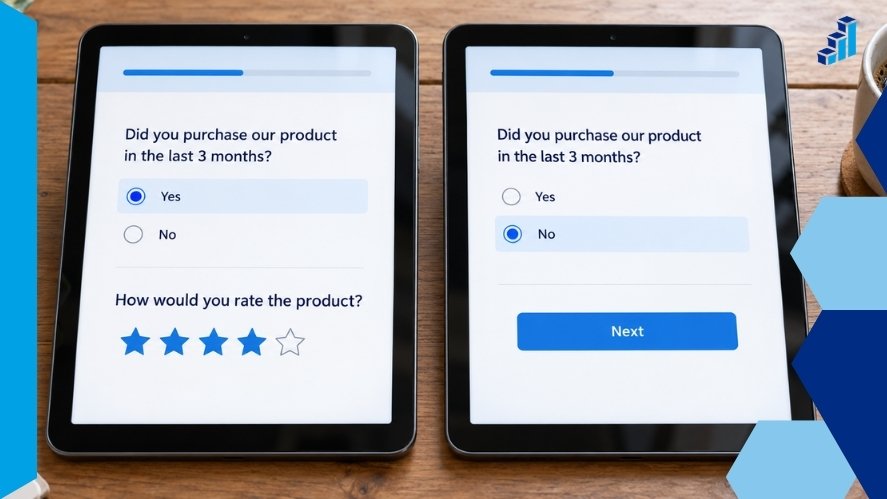
Q1: Have you bought from us before?
- Yes
- No
Then add a follow-up:
Q2: How was your most recent purchase?
Set the rule: Show Q2 only if Q1 = Yes.
People who choose “Yes” see Q2. Those who choose “No” move on without seeing it. This keeps the follow-up tied to a real experience.
However, do not remove every “Not applicable” option. Someone may meet your rule and still be unable to answer a specific question.
How Does Display Logic Work?
A basic rule connects three parts:
- Source question: The question that supplies the answer, such as “Have you used our app?”
- Condition: The answer that triggers the rule, such as “Yes.”
- Follow-up question: The item that appears when the rule is true, such as “How easy was the app to use?”
The tool checks the answer and decides whether to show the follow-up.
For example, ask people which products they have used. If they choose Product A and Product C, show questions about those two products. Keep Product B questions hidden.
For a question that allows several answers, make “None of these” exclusive if your tool supports it. Otherwise, someone could select it alongside a product and create a conflict.
Also, check when the rule takes effect. Some tools reveal a question on the same page. Others show it after the person clicks Next. Do not assume every platform behaves the same way.
Single and Multiple Conditions
A single condition is easy to set up:
Show the app feedback question if the person has used the app.
For a more focused group, you may need two conditions:
Show the question if the person has used the app AND made a purchase in the past 30 days.
With AND, both conditions must be true. With OR, at least one must be true.
For example, an OR rule could show a delivery question to people who used standard shipping or express shipping.
When you mix AND and OR, check how the tool groups the rules. Different groupings can change who sees the question. Use the simplest rule that meets your goal.
Display Logic vs Skip Logic vs Branch Logic
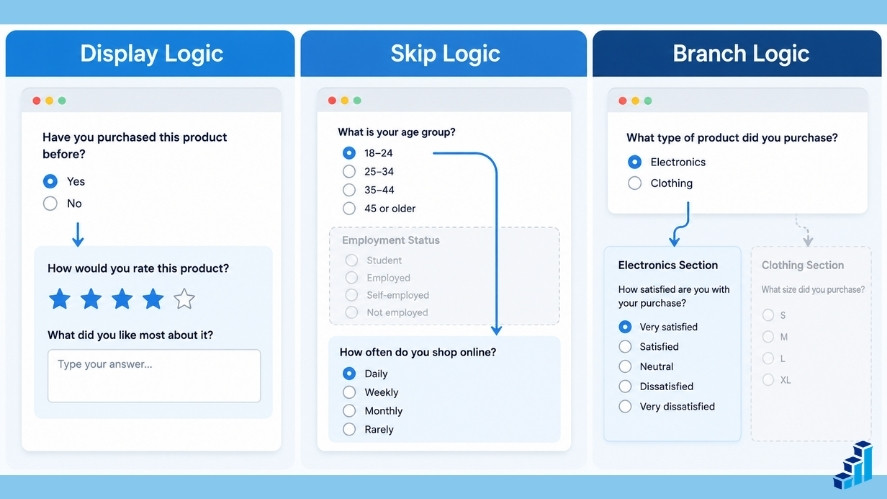
These tools all change the survey experience, but they serve different tasks. Labels can vary across platforms, so check what each setting actually does.
| Logic type | Main purpose | Example |
|---|---|---|
| Display logic | Controls whether an item appears | Show an app rating only to app users |
| Skip logic | Moves someone past questions | Send non-customers past the purchase section |
| Branch logic | Routes people through different paths | Give customers and staff different sections |
Use display logic when you need a targeted follow-up. Use skip or branch logic when a whole section applies to only one group.
For example, a low satisfaction score could reveal one extra question. In contrast, someone who has never bought from you may need to skip the entire customer section.
You can use both approaches in one survey where your tool supports them. First, route customers into the right section. Then show follow-ups based on their answers.
For more detail, read our guide to skip logic vs. branch logic.
Why Use Display Logic in Surveys?
Make Questions More Relevant
People can give better feedback when questions match what they have done. For example, ask about a support call only after someone says they contacted support.
This also helps avoid confusion. People do not have to guess why a question appears or how to answer it.
Reduce Unnecessary Questions
Imagine a survey with 30 questions, but only 18 apply to one person. With the right rules, that person can see the 18 relevant items.
This is an example, rather than a measured result. Actual time savings depend on your survey and its paths. Some people may see more questions because they qualify for several follow-ups.
Make Follow-Ups Feel Natural
A useful follow-up reflects the answer that came before it.
If a customer reports a delivery problem, ask what went wrong. If delivery went well, you may not need that question at all.
As a result, the survey can feel more focused and easier to complete.
Reduce Irrelevant Answers
People who never used a feature cannot rate it from experience. Hiding that rating question can reduce guesses and unrelated replies.
Still, logic alone does not ensure good data. Clear wording, a suitable sample, and careful testing remain essential.
Common Display Logic Use Cases

Customer Satisfaction Surveys
Use a clearly labeled five-point scale, from 1 = Very dissatisfied to 5 = Very satisfied.
Then tailor the follow-up:
- Scores 1–2: “What caused the problem?”
- Score 3: “What would improve your experience?”
- Scores 4–5: “What worked well for you?”
Treat these as example rules. You can group scores differently to suit your research.
However, use the same neutral follow-up for everyone if you need to compare their reasons directly. Different wording can shape the feedback you receive.
NPS Surveys
Net Promoter Score (NPS) uses a recommendation question with a 0–10 scale. The standard NPS groups are:
- Detractors: Scores 0–6
- Passives: Scores 7–8
- Promoters: Scores 9–10
You can show a different follow-up to each group. For example, ask detractors what needs to change and promoters what they value most.
Alternatively, ask everyone “What is the main reason for your score?” This keeps the follow-up consistent across groups. Display logic changes the follow-up, not the NPS scoring method.
Product Feedback Surveys
First, ask which features someone used in the past 30 days. Then show feedback questions only for those features.
For instance, someone who used reports and alerts sees questions about both. They do not need to rate tools they have never opened.
Employee Surveys
Work arrangements can guide relevant follow-ups. People who work on-site may see questions about office facilities. Remote staff may see questions about remote support.
Hybrid staff could see both sets. However, check actual use when needed. A work label alone does not prove someone used a facility or service.
Market Research Surveys
Ask a screening question before requesting details about a purchase.
For example: “Have you bought running shoes in the past six months?”
People who answer “Yes” see questions about that purchase. Others can still answer broader questions about brand awareness or future plans.
Hiding a purchase question does not mean you must end the survey. That depends on who your study needs to include.
Event Feedback Surveys
Ask which sessions each person attended. Then show ratings for those sessions.
For example, someone who attended the keynote and Workshop B sees questions about those events. They do not need to judge sessions they missed.
How to Set Up Display Logic in a Survey
The controls vary by platform, but these steps provide a useful starting point.
1. Choose the Source Question
First, identify the answer that should control the follow-up. Use clear choices that match the rule you need.
For example: “Have you used our mobile app in the past 30 days?”
A clear time frame helps people answer the same question.
2. Write the Follow-Up
Next, add the question you want to show to that group.
For example: “How easy was the app to use?”
Place it after the source question so the needed answer is available.
3. Set the Condition
Add a rule that shows the follow-up when the source answer is “Yes.” Then check that the rule points to the right question and answer choice.
For a narrow group, add a second condition only if it serves a clear purpose.
4. Handle Missing Answers
Decide what happens if someone leaves the source question blank or skips it on another path.
Do not assume a blank answer means “No.” Instead, choose a clear fallback that fits your study. Test that fallback before launch.
5. Preview Both Outcomes
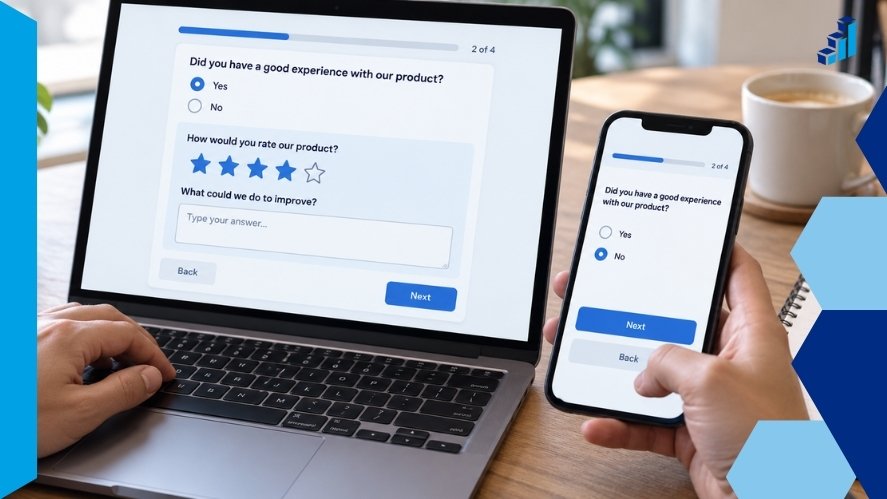
Choose “Yes” and confirm the follow-up appears. Then start again, choose “No,” and confirm it stays hidden.
Also, check that people can finish the survey in both cases.
6. Test Combined Rules
For AND rules, test both conditions together and each one alone. For OR rules, test either condition, both conditions, and neither.
Finally, change an earlier answer if the survey allows it. Check what happens to a follow-up answer when its question becomes hidden. Tools may keep or clear that answer, which can affect your results.
Using Survey Logic With Polling.com
Polling.com documents its conditional survey tools under logic branching. Its survey logic documentation lists skip logic, section branching, requirement toggling, early endings, and combined conditions.
These tools can help you guide people toward relevant questions. However, the documentation does not clearly describe a separate control named “Display Logic.” Check the available actions in your builder before planning a specific show-or-hide effect.
To add branching, the documented steps are:
- Select Logic on the source question.
- Choose Add Logic and set the rule.
- Select Save, then test the route in preview.
The Polling.com survey builder also includes a preview tab with device and screen-size options. Use it to check your paths on both desktop and mobile.
Display Logic Best Practices
Keep Rules Simple
Start with one clear condition. Add more only when they help you collect needed data.
Simple rules are easier to review. They also make it easier to fix problems when the survey changes.
Map Complex Paths First
For a survey with several groups, sketch the paths before building. List each source answer, its follow-up, and where the person goes next.
This helps you spot missing routes before you spend time setting up rules.
Test Every Valid Path
Create a short test list and record what should happen.
| Test answer | Expected result |
|---|---|
| Source answer is Yes | Follow-up appears |
| Source answer is No | Follow-up stays hidden |
| Both AND conditions are true | Follow-up appears |
| Only one AND condition is true | Follow-up stays hidden |
| Source answer is blank | Planned fallback works |
Include less common answers, multi-select choices, and any paths that end early. For a small set of rules, test every valid combination. For larger surveys, use a clear test plan that covers each rule and its interactions.
Check Mobile and Required Fields
On a phone, confirm that new questions are easy to notice and answer. Check spacing, buttons, and any error messages.
Also, verify that a hidden required question cannot block progress. If possible, test with a keyboard and screen reader to check focus and navigation.
Plan Your Analysis
A hidden question is different from a question someone saw but left blank. Keep track of both where your data allows it.
For example, suppose 100 people complete your survey. Only 40 have used the app, so only those 40 see an app rating. If 30 give a positive rating, that is 75% of those 40 app users.
It does not mean 75% of all 100 people rated the app positively. State the base for each result and document the rule that chose the group.
Common Display Logic Mistakes to Avoid
Watch for these errors before launch:
- Wrong question or answer: Confirm the source and target of each rule.
- Conflicting conditions: A single-choice answer cannot be both “Yes” and “No” at once.
- Too many layers: Remove rules that add work without helping the study.
- Missing source answers: Check paths where people never see the source question.
- Hidden required fields: Make sure every valid path allows completion.
- Untested answer changes: Check stored answers after someone changes an earlier choice.
- Broken rules after edits: Review linked rules when you rename, remove, or replace an answer.
- Wrong logic type: Use routing for whole sections and visibility rules for targeted items.
After any change, retest the affected paths. A small edit to an early question can change what happens much later.
Display Logic FAQ
What Is Display Logic in a Survey?
Display logic uses a rule to decide whether a survey question appears. The rule often checks an earlier answer. For example, only people who say they used a product see a question about that product. Some platforms also let you apply these rules to answer choices.
What Is an Example of Display Logic?
Ask “Have you contacted support?” If the answer is “Yes,” show “How helpful was the support team?” If the answer is “No,” keep the follow-up hidden.
How Does Display Logic Differ From Skip Logic?
Display logic controls whether an item appears. Skip logic moves a person past questions or sections. The result may look similar, but the controls and labels vary by tool.
Is Display Logic the Same as Conditional Logic?
Display logic is one type of conditional logic. The broader term also covers rules for branching, skipping questions, or ending a survey based on an answer.
Can Display Logic Use Multiple Conditions?
Yes, where the platform supports them. AND rules require all listed conditions to be true. OR rules require at least one. Check how the builder groups mixed conditions.
When Should You Use Display Logic?
Use it when a follow-up applies to only part of your audience. Common examples include product ratings, support feedback, and questions about sessions someone attended.
Create Smarter Surveys With Display Logic
Display logic helps you ask the right follow-up at the right time. Start with clear source questions, keep your conditions simple, and test how each path works.
Then, review who saw each question before you report the results. Relevant questions and clear analysis work together to make feedback more useful.
Ready to build your survey? Create a survey with Polling.com and use its branching tools to guide people through relevant questions.